How USB C to HDMI Connectivity Is Transforming Modern Screens and Device Compatibility
The way people use computers has changed considerably over the past decade. Laptops are thinner, tablets are more capable, and smartphones can handle tasks that once required a desktop computer. However, smaller devices often come with fewer physical ports. This creates a practical challenge when users need to connect their equipment to larger screens, projectors, televisions, or professional monitors. Having a powerful computer is not enough if connecting it to the right display becomes complicated.
A usb c to hdmi adapter provides a straightforward solution by allowing compatible USB-C devices to send audio and video signals to HDMI-equipped displays. Instead of depending on complicated workstation arrangements, users can connect a laptop to an external monitor, mirror a tablet onto a television, or deliver a presentation through a projector. The real advantage is flexibility: one compact accessory can make different screens accessible without requiring a completely different connection system for every device.
Yet display connectivity involves more than matching two connectors. Resolution, refresh rate, video output protocols, HDCP support, cable quality, and hardware compatibility all influence the final experience. Understanding these details helps users avoid common purchasing mistakes and build a setup that works reliably for both everyday activities and demanding professional tasks.
The Changing Role of External Displays
External displays have become essential tools in many environments. Office professionals use additional monitors to manage spreadsheets, documents, communication platforms, and research simultaneously. Designers need larger screens to examine visual details, while video editors benefit from having timelines and preview windows separated across different displays.
Students and remote workers also rely on external monitors to create more comfortable working environments. A laptop screen may be sufficient for occasional tasks, but extended work involving several applications can become difficult when everything has to fit into a limited display area. Connecting an external monitor provides additional space and allows users to organize their work more efficiently.
Entertainment is another important use case. People may want to display mobile content on a television, watch downloaded media on a larger screen, or connect a laptop to a projector for a shared viewing experience. The same connection technology can serve all these purposes, provided the source device supports the necessary video output.
This growing dependence on external screens explains why compact display adapters have become useful accessories. They help bridge the gap between modern portable devices and the HDMI connections still widely used by televisions, monitors, and presentation equipment.
Understanding How USB-C Sends Video to HDMI
USB-C is a connector standard rather than a guarantee of specific functionality. Its reversible design makes it convenient, but different USB-C ports can support different features. Some are primarily intended for charging and basic data transfer, while others also support high-speed data, external displays, and advanced connectivity protocols.
One important technology behind USB-C video output is DisplayPort Alternate Mode, commonly called DisplayPort Alt Mode. When a compatible device supports this feature, its USB-C port can transmit DisplayPort video signals. A suitable adapter converts the signal into a format that an HDMI display can receive.
This process allows a laptop or tablet to communicate with a monitor without requiring a traditional HDMI port on the source device. The adapter acts as the connection bridge, while the computer handles the graphics processing and video output.
It is important to distinguish this process from USB-C charging. A port may charge a device successfully without supporting external video. This is why checking the specifications of a laptop, tablet, or smartphone is essential before purchasing an adapter.
Some computers also support video output through Thunderbolt ports, which use the USB-C connector shape. These systems can often work with compatible USB-C display adapters, but the actual capabilities depend on the computer and adapter specifications.
Why Resolution and Refresh Rate Matter
Resolution determines how many pixels make up an image. A higher resolution generally allows more visual detail to appear on a screen. Full HD, or 1920 × 1080, remains suitable for many everyday tasks, while 4K resolution provides substantially more pixels for detailed work, video editing, entertainment, and large displays.
However, resolution is only one part of display quality. Refresh rate describes how frequently a display updates its image each second. A 60Hz display refreshes 60 times per second, while a 120Hz or 144Hz display can provide smoother motion when the source hardware and connection support those rates.
These specifications become particularly important when choosing an adapter. A product advertised as supporting 4K may not necessarily support 4K at 60Hz. Some models may offer 4K at 30Hz, which can be acceptable for presentations or static content but may feel less fluid during everyday desktop use.
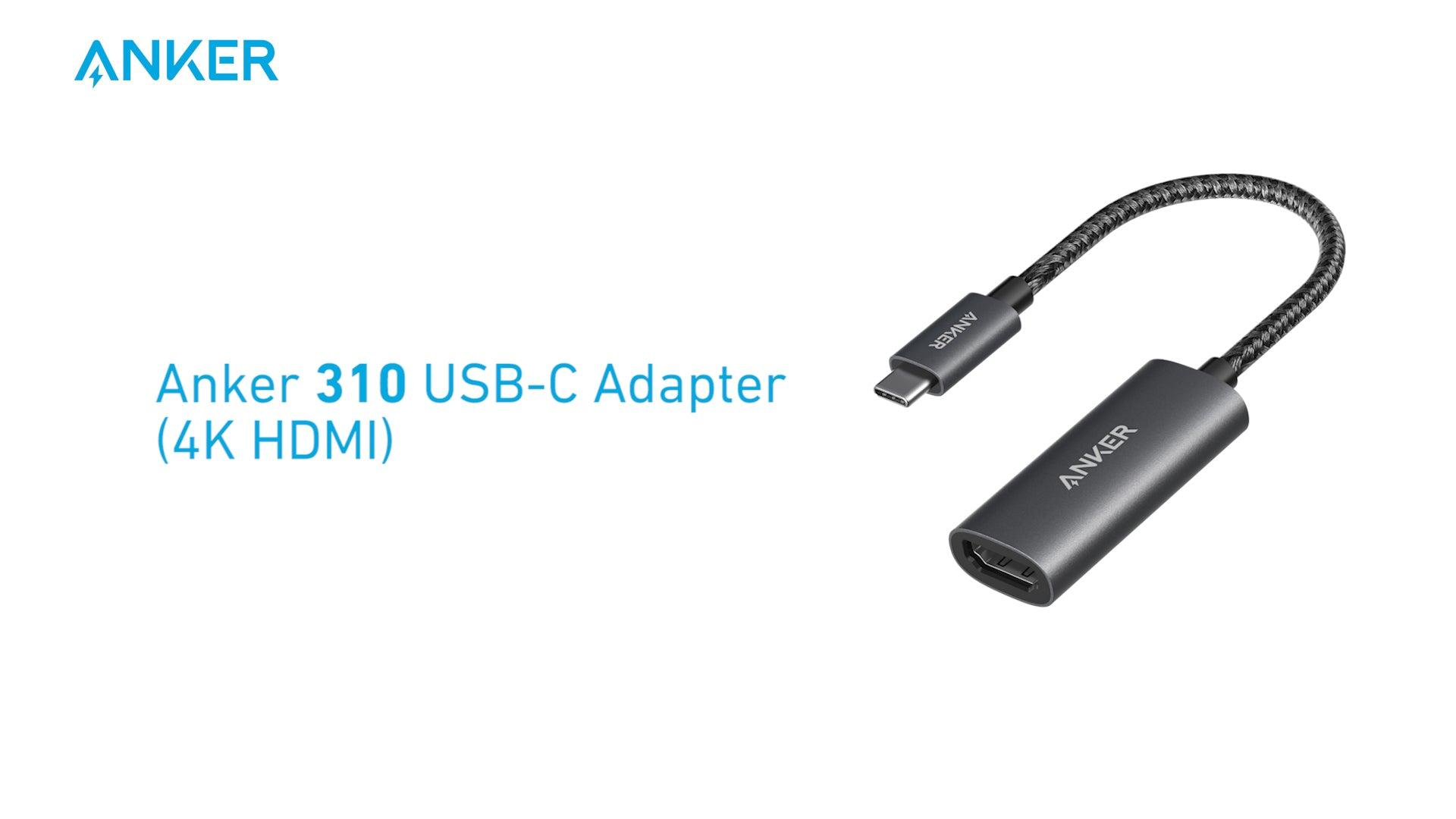
For example, Anker’s 310 USB-C Adapter with 4K HDMI supports up to 4K at 60Hz through its HDMI 2.0 interface. Other adapters offer different performance levels, so buyers should compare the exact specifications instead of relying on the general phrase 4K support.
The source device, adapter, HDMI cable, and monitor must all support the intended resolution and refresh rate. If one component has a lower capability, the complete setup may operate at that lower level.
Choosing Between Screen Mirroring and Extended Display
Connecting an external display does not always mean showing exactly the same content on both screens. Most modern operating systems provide two common display modes: mirroring and extending.
Screen mirroring duplicates the primary display. Whatever appears on the laptop or tablet also appears on the connected monitor or television. This arrangement is particularly useful for presentations, classroom demonstrations, meetings, and shared entertainment because everyone can view the same content.
Extended display mode treats the external monitor as additional workspace. Instead of duplicating the original screen, the operating system allows applications and windows to move between displays. A professional might keep a video editing timeline on one screen while viewing the final preview on another. A researcher could display reference material on one monitor while writing a report on the laptop.
The choice depends on the task. Mirroring is generally convenient when the goal is communication, while extending is useful when additional workspace is needed. Operating systems may also provide controls for display arrangement, scaling, orientation, and resolution.
A compatible adapter makes the physical connection possible, but the computer’s graphics hardware and operating system determine which display configurations are available.
USB-C to HDMI for Gaming and Entertainment
Gaming places different demands on display connections compared with ordinary office work. Players often care about refresh rates, input responsiveness, resolution, and stable signal transmission. A connection that works perfectly for a presentation may not deliver the same experience on a high-refresh gaming monitor.
For casual gaming, a compatible adapter supporting 1080p or 4K at 60Hz may be sufficient. More demanding gaming setups require careful attention to higher refresh rates and the capabilities of the graphics hardware. An adapter cannot create additional graphics performance or unlock display modes that the source device does not support.
For entertainment, HDMI connectivity is useful because televisions and projectors commonly provide HDMI inputs. A compatible laptop can send video and audio to a television, allowing users to watch content on a larger screen without relying on wireless casting.
HDCP support can also matter when playing protected digital content. High-bandwidth Digital Content Protection is designed to prevent unauthorized copying of certain digital media during transmission. If the connected devices or adapters do not support the required protection standard, some protected content may fail to display correctly.
For a reliable entertainment setup, users should check the adapter’s supported HDCP version, the television’s HDMI capabilities, and the source device’s display specifications.
The Difference Between USB-C and Lightning
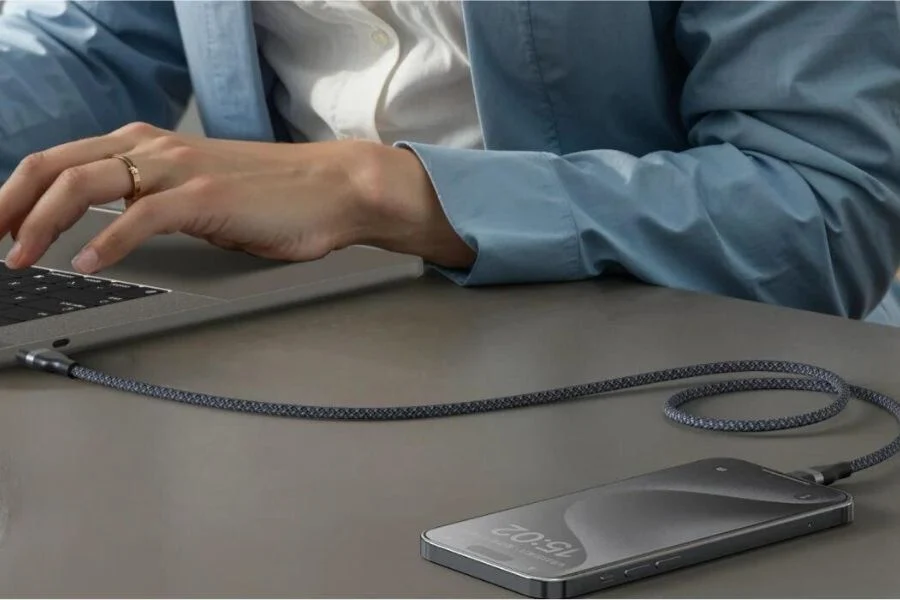
Although USB-C and Lightning cables may appear similar in everyday use, they represent different connector systems. USB-C is an industry-standard connector used across many manufacturers and product categories. Lightning was developed by Apple for its devices and has historically been used on iPhones, selected iPads, and accessories.
Their physical designs are different, meaning that a USB-C connector cannot simply be inserted into a Lightning port. Users need the appropriate cable or adapter when connecting equipment that uses different connector types.
The distinction also extends to compatibility and functionality. USB-C can support charging, data transfer, and video output depending on the device and cable. Lightning is primarily associated with Apple’s mobile-device ecosystem and has different technical capabilities.
The usb c cable lightning distinction is especially important when purchasing charging accessories. A USB-C to Lightning cable has a USB-C connector on one end and a Lightning connector on the other. It is designed for compatible Lightning-equipped Apple devices and can work with a USB-C Power Delivery charger to support fast charging when the device allows it.
By comparison, a USB-C to USB-C cable connects two USB-C-equipped devices. It may support different charging levels and data speeds depending on its design. These products are not interchangeable simply because one end looks similar.
Why the Connector on Each End Matters
A cable should always be selected according to the ports on the devices being connected. For example, someone with an older iPhone that uses Lightning needs a Lightning-compatible charging cable, even if their wall charger has a USB-C port. Someone using a newer USB-C iPhone can use a USB-C to USB-C cable instead.
The same principle applies to tablets and laptops. Some older iPads use Lightning, while newer models have adopted USB-C. This difference affects charging accessories, external storage connections, and display compatibility.
Mixing up connector types can lead to unnecessary purchases or frustrating attempts to connect incompatible devices. Before ordering an accessory, users should inspect both ends of the required connection and verify the exact model of their device.
It is also worth checking the specifications of the cable itself. A USB-C connector does not automatically mean that a cable supports high-speed data transfer, high-wattage charging, or video output. Some cables are designed mainly for power, while others support advanced data and display functions.
Single-Port Adapters Versus Multiport Hubs
A simple USB-C to HDMI adapter is often the most practical choice when a user only needs to connect one external screen. Its compact design makes it easy to carry in a laptop bag, and it avoids adding unnecessary equipment to a workspace.
However, users who need additional connectivity may benefit from a multiport hub. These devices can combine HDMI output with USB-A ports, USB-C data connections, memory card readers, Ethernet, and sometimes pass-through charging.
A multiport hub can be particularly useful for laptops with limited built-in connections. Instead of carrying separate adapters for every accessory, users can connect several peripherals through one compact device.
The decision should be based on actual requirements. Someone who frequently gives presentations may only need a small HDMI adapter. A professional working with external drives, wired networking, monitors, and multiple accessories may prefer a more comprehensive hub or docking station.
Buyers should also examine how the hub distributes bandwidth among its ports. Connecting several high-demand devices simultaneously can affect performance, depending on the hub’s internal design and the capabilities of the host computer.
Common Compatibility Problems and How to Avoid Them
One of the most frustrating problems is connecting an adapter and receiving no display signal. In many cases, the issue is not the HDMI monitor itself but the USB-C port on the source device.
The first step is to confirm that the port supports DisplayPort Alt Mode or an appropriate Thunderbolt display connection. A USB-C port designed only for charging and data transfer may not provide video output.
The HDMI input selected on the monitor or television should also be checked. Modern displays often have several HDMI ports, and the screen may remain blank if the wrong input source is selected.
Other potential causes include damaged HDMI cables, loose connectors, outdated graphics drivers, unsupported display settings, or a resolution that exceeds the capabilities of one component. Testing the adapter with another compatible display can help narrow down the cause.
For laptops, users can also check the operating system’s display settings to see whether the external monitor has been detected. Restarting the connected devices may resolve temporary communication issues.
A little preparation can prevent many of these problems. Checking compatibility before purchase is generally easier than troubleshooting an unsuitable adapter after it arrives.
Build Quality and Long-Term Reliability
Display adapters are frequently connected and disconnected, especially when used for travel, meetings, and shared workspaces. Their physical construction therefore matters more than many buyers initially realize.
The connector should fit securely without excessive movement. A well-designed housing can help protect internal components, while quality materials may improve durability during regular transport. Braided cable sections, reinforced joints, and compact protective designs can also be useful depending on the product.
Heat management is another consideration. High-resolution video transmission can place demands on an adapter’s internal electronics. Although compact adapters are designed for this type of use, users should avoid placing them in enclosed spaces where heat cannot dissipate properly.
Long-term reliability also depends on using the accessory within its specified limits. An adapter intended for a particular resolution and refresh rate should not be expected to deliver higher performance simply because the connected monitor supports it.
Choosing a product with clearly documented specifications and dependable manufacturer support can make the investment more worthwhile.
Conclusion
Modern devices increasingly rely on compact connectors, but users still need to work with a wide range of displays and accessories. USB-C to HDMI technology helps connect these different environments, allowing compatible laptops, tablets, and smartphones to communicate with televisions, monitors, and projectors.
At the same time, understanding the differences between USB-C and Lightning is essential when choosing charging and data accessories. Connector shape, charging capability, data performance, and video support are separate considerations that should never be assumed from appearance alone.
The best connectivity setup is one that matches the actual capabilities of the devices involved. By checking video output support, resolution, refresh rate, cable specifications, and connector compatibility, users can avoid common problems and create a more flexible digital workspace.
Frequently Asked Questions
Can every USB-C port connect to an HDMI monitor?
No. The USB-C port must support video output through DisplayPort Alternate Mode or a compatible Thunderbolt implementation. A port that only supports charging and data transfer will not necessarily work with a USB-C to HDMI adapter.
Does a USB-C to HDMI adapter support 4K at 60Hz?
Some adapters do. However, the exact capability depends on the adapter, source device, HDMI cable, and display. Buyers should verify the supported resolution and refresh rate before purchasing.
Is USB-C the same as a Lightning connector?
No. USB-C is a widely adopted industry-standard connector, while Lightning is Apple’s proprietary connector. They have different physical designs and require compatible cables or adapters when connecting devices that use different ports.
Can a USB-C to HDMI adapter transmit audio as well as video?
Yes. Compatible USB-C video output and HDMI connections can transmit both audio and video to supported displays. Audio settings on the source device may need to be adjusted if sound does not automatically play through the connected monitor or television.
Should I buy a USB-C to HDMI adapter or a multiport hub?
A single-port adapter is suitable when you only need external display connectivity. A multiport hub is more practical when you also need USB accessories, storage connections, Ethernet, or pass-through charging. The right option depends on your device and daily workflow.